
0
Platforms: TikTok, Instagram Reels, YouTube Shorts.
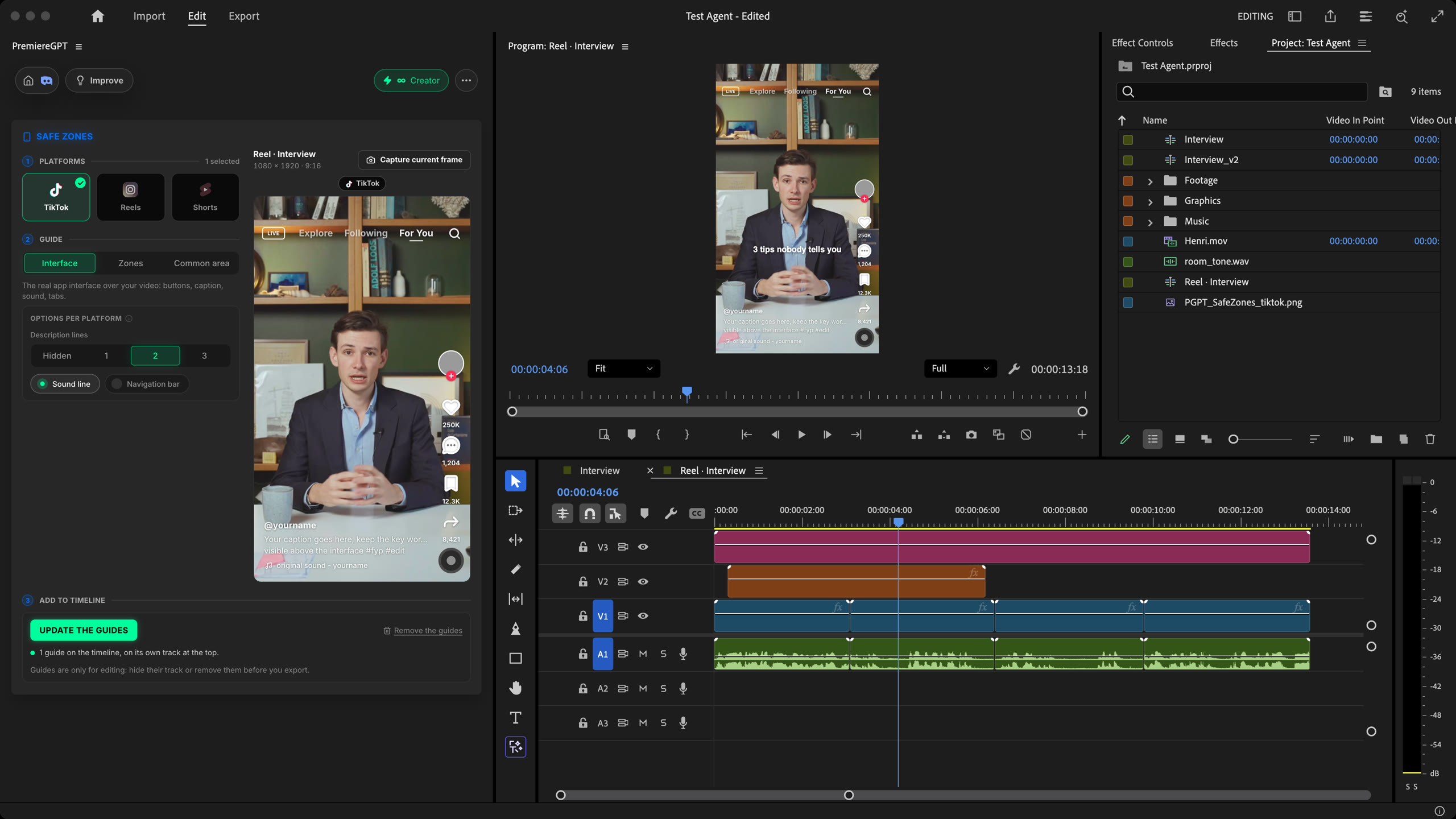
Safe Zones lays the TikTok, Reels and Shorts interface over your Premiere Pro edit as a transparent guide on its own track, so your captions and key moments never end up under a button. Free.
Pick your platforms, see the real app interface or just the zones it covers, add the guide in 1 click. Native to Premiere.
How it works
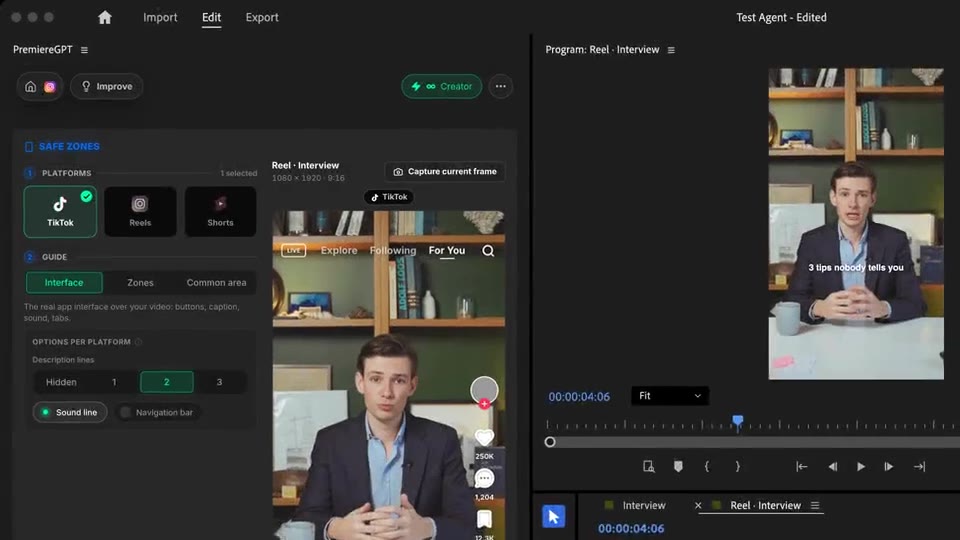
Platforms
TikTok, Reels, Shorts, or all three. The preview in the panel updates as you go.
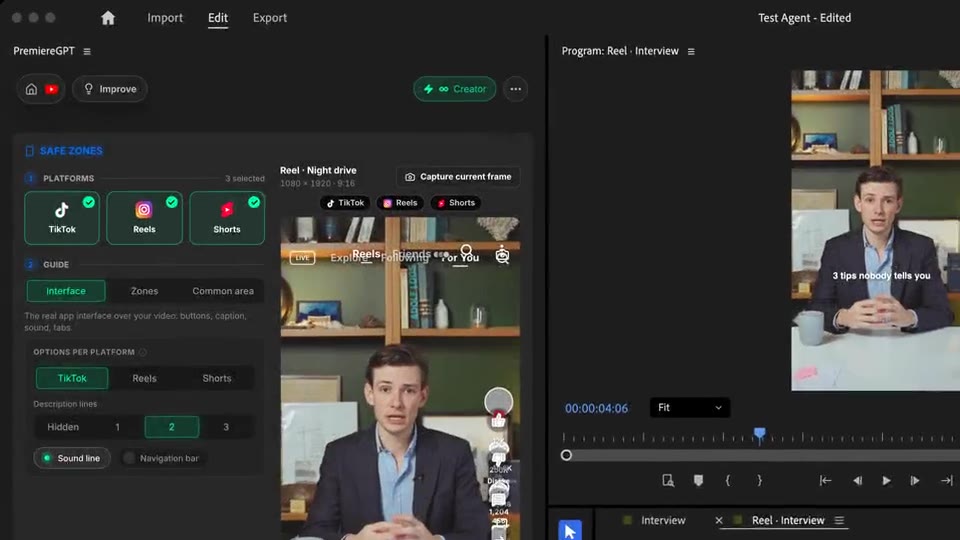
Guide
See the real app interface, only the areas it covers in red, or the one area that stays clear on every platform. Match your description lines and sound line.
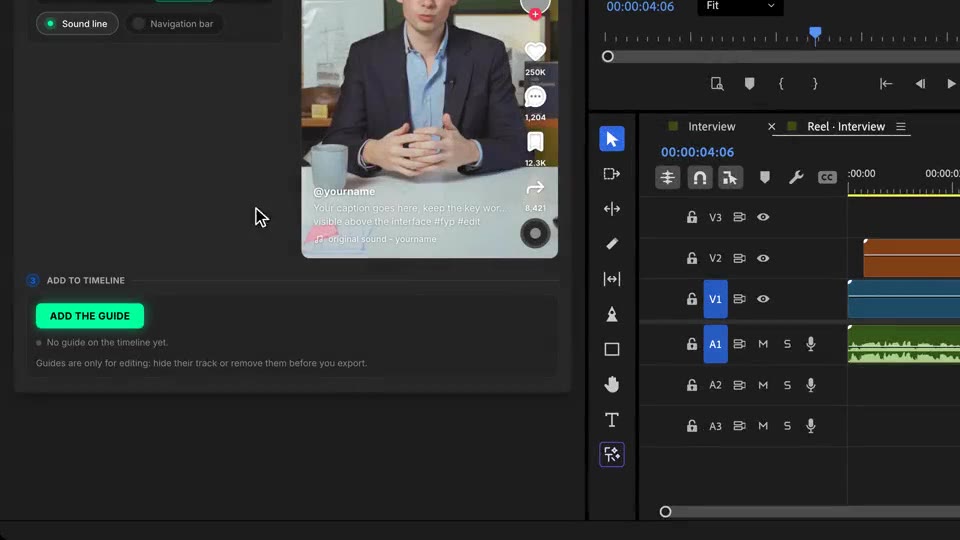
Add to timeline
The guide lands at the top of your Premiere sequence, from start to end, and shows in the Program monitor. Hide it or remove it before export.
What ships
Platforms: TikTok, Instagram Reels, YouTube Shorts.
No credits. The guides are drawn on your computer.
Real interface, covered zones in red, or the common safe area.
Drawn at the apps' own size, then fitted to your sequence: vertical, 4K or horizontal.
A transparent guide on its own top track. Your clips stay untouched.
Stack the rest
Plain-English prompts that edit your real timeline.
Learn moreMotion design generated from a single prompt.
Learn moreAny GenAI model, native in Premiere. By Fal.AI.
Learn moreWord-by-word, animated captions in 99 languages.
Learn moreActive speaker detection, multicam autocut.
Learn moreAuto-detect silences and tighten the edit.
Learn moreRemoves bad takes & repetitions, follows your script.
Learn moreTurn 1h of content into 10 vertical viral clips.
Learn more0 spelling mistakes. GPT-5 corrected, native subtitles.
Learn moreAnimated MoGRT chapters from a single prompt.
Learn more1 audio → speaker-by-speaker tracks.
Learn moreEmotion-driven V2 zoom clips, generated.
Learn moreAI sound effects, placed on your timeline.
Learn moreSpell check every text on your timeline.
Learn moreAI kinetic text, from your own words.
Learn moreEvery short, exported in 1 click.
Learn morePro easing on your clips, in one click.
Learn moreAny emoji, placed on your timeline.
Learn moreAI color grading, matched shot to shot.
Learn moreAI audio mixing for your whole timeline.
Learn moreBeat markers, placed on your music.
Learn moreYour b-roll, placed where it fits.
Learn moreYour clipboard, on the timeline.
Learn moreNew files, imported on their own.
Learn more
FAQ
It lays the TikTok, Reels and Shorts interface over your edit as a transparent guide, so you see exactly where the buttons, caption, sound line and tabs will cover your video. Captions and key moments stay in the clear.
TikTok, Instagram Reels and YouTube Shorts, one or several at once. Three views: the real app Interface, the Zones it covers (in red) with the safe area, or the Common area that stays clear on every platform you picked.
Yes. Per platform, choose the number of description lines (title lines on Shorts), the sound line and the navigation bar. A longer description pushes the bottom of the interface up, and the zones follow.
The guide is a transparent image on its own track at the top of the sequence, for editing only. Hide that track or remove the guides in one click before you export. Auto Export leaves them out automatically.
Yes. Safe Zones is free and uses no credits. The guides are drawn on your computer.
Works natively in Premiere Pro, on macOS (Intel and Apple Silicon) and Windows. Vertical, 4K or horizontal sequences: the guide is fitted to your frame.