11 curves
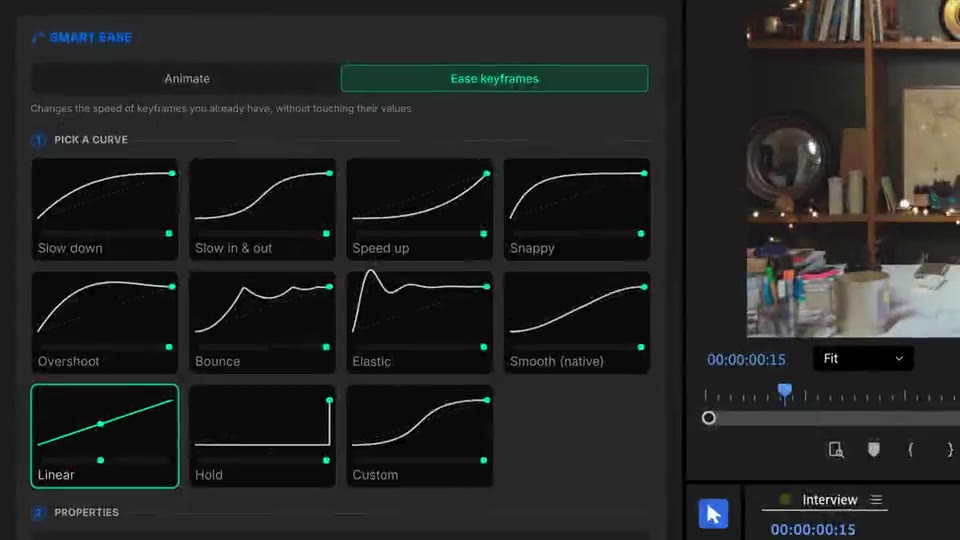
From Slow down to Elastic, plus your own Bezier curve.
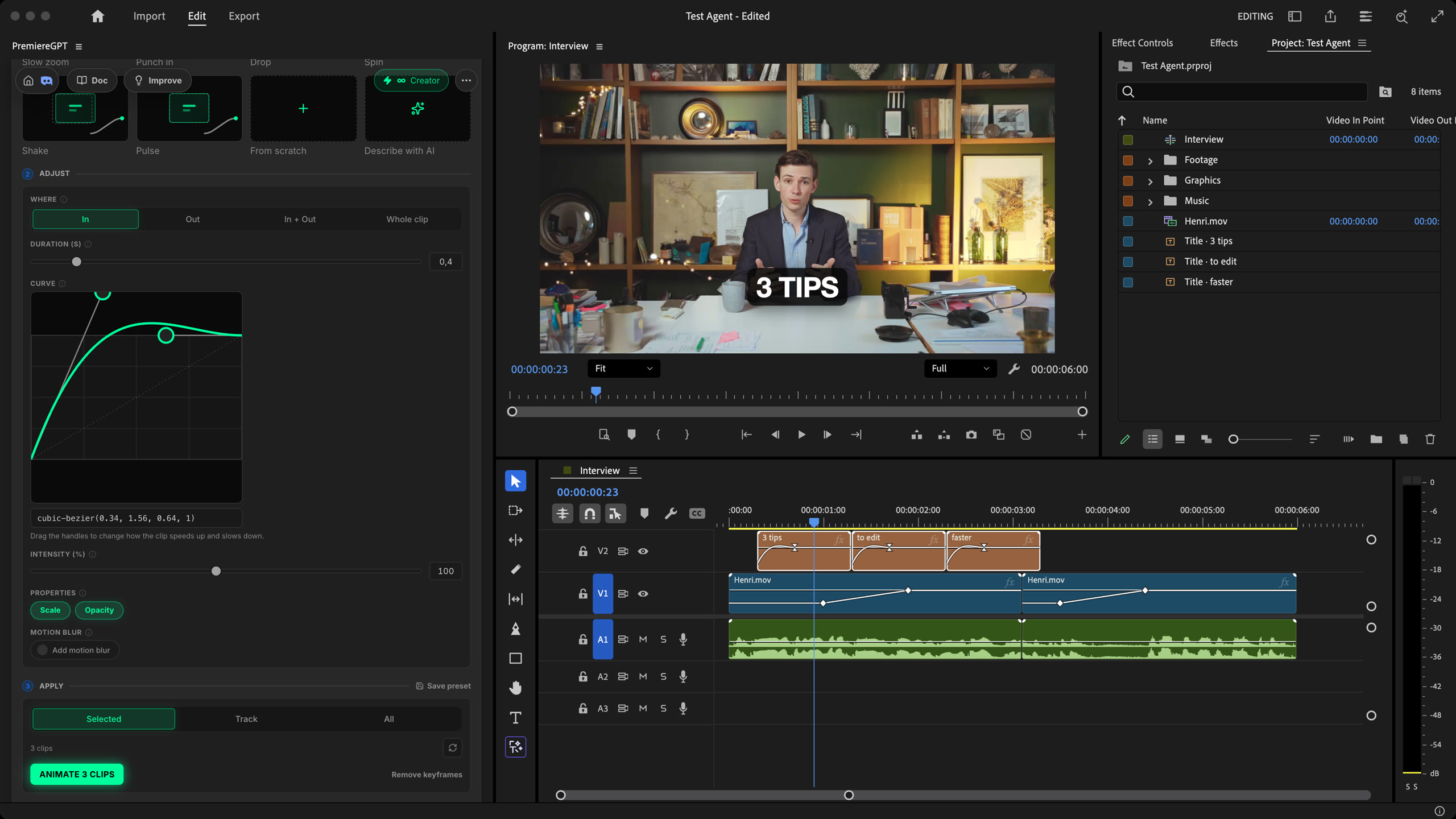
Smart Ease adds eased animations to your clips in Premiere Pro, or re-times the keyframes you already have. Pick a preset or a curve, apply it to a clip, a track or the whole timeline. Free.
Pop your captions, slide in your titles, put a bounce on your zooms. Same curve on 1 clip or 100, and one Undo button if you change your mind. Native to Premiere.
How it works
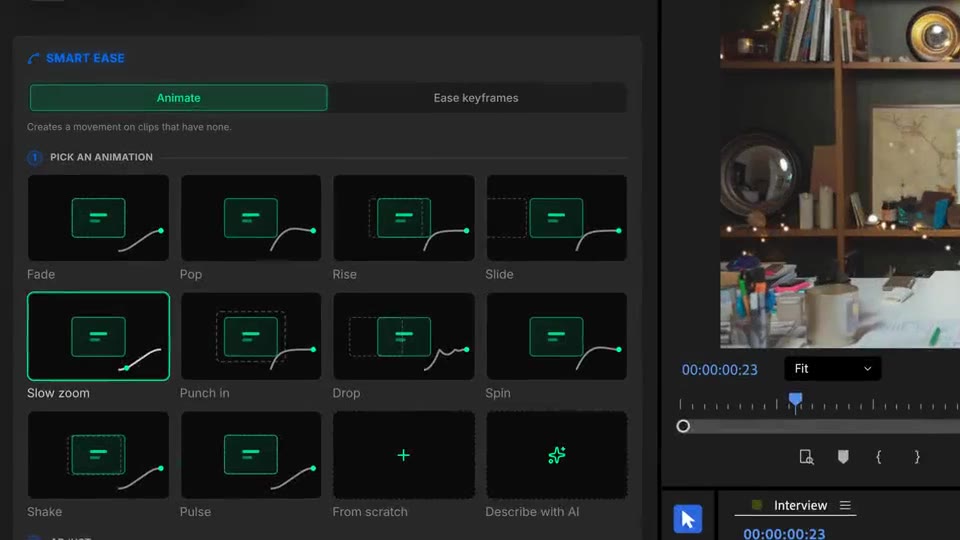
Pick an animation
Every preset card plays its motion when you hover it: fade, pop, rise, slide, slow zoom, punch in, drop, spin. Click the one that fits.
Animate
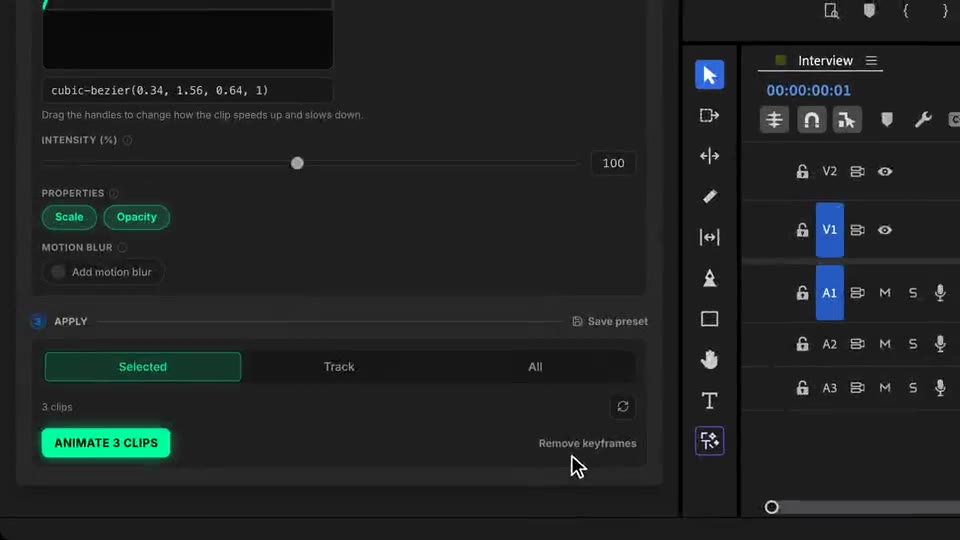
Keep Selected, or pick a whole track. Click Animate: the keyframes land on each clip, relative to its own position and scale.
Ease keyframes
Already animated by hand or by another tool? Pick a curve like Bounce and apply it. Your values stay, only the feel changes.
What ships
From Slow down to Elastic, plus your own Bezier curve.
Presets, curves and re-easing cost no credits.
Selected clips, one track or all clips, in batches with a live counter.
Try presets one after another. Undo puts your clips back as they were.
Real Premiere keyframes. Smooth (native) writes just two, easy to edit by hand.
Stack the rest
Plain-English prompts that edit your real timeline.
Learn moreMotion design generated from a single prompt.
Learn moreAny GenAI model, native in Premiere. By Fal.AI.
Learn moreWord-by-word, animated captions in 99 languages.
Learn moreActive speaker detection, multicam autocut.
Learn moreAuto-detect silences and tighten the edit.
Learn moreRemoves bad takes & repetitions, follows your script.
Learn moreTurn 1h of content into 10 vertical viral clips.
Learn more0 spelling mistakes. GPT-5 corrected, native subtitles.
Learn moreAnimated MoGRT chapters from a single prompt.
Learn more1 audio → speaker-by-speaker tracks.
Learn moreEmotion-driven V2 zoom clips, generated.
Learn moreAI sound effects, placed on your timeline.
Learn moreSpell check every text on your timeline.
Learn moreAI kinetic text, from your own words.
Learn moreSafe zone guides for every feed.
Learn moreEvery short, exported in 1 click.
Learn moreAny emoji, placed on your timeline.
Learn moreAI color grading, matched shot to shot.
Learn moreAI audio mixing for your whole timeline.
Learn moreBeat markers, placed on your music.
Learn moreYour b-roll, placed where it fits.
Learn moreYour clipboard, on the timeline.
Learn moreNew files, imported on their own.
Learn more
FAQ
It adds eased animations to your clips (fade, pop, rise, slide, slow zoom, punch in, drop, spin and more) in one click. It can also re-ease keyframes you already have: your values stay, only the timing between them changes.
Yes. Presets, curves, custom Bezier curves, re-easing, Undo and Remove keyframes cost nothing. Only the optional Describe with AI mode uses credits: 10 per generated animation.
Yes. Apply to the selected clips, to every clip of one track, or to all clips. Pick Pop, choose the track that holds your captions, and every caption gets the same animation.
Slow down, Slow in & out, Speed up, Snappy, Overshoot, Bounce, Elastic, Smooth (native Premiere), Linear, Hold, and Custom, where you drag Bezier handles or paste a cubic-bezier() value.
Use the Undo button in the Smart Ease panel. Premiere's Cmd/Ctrl+Z does not remove keyframes added by extensions.
Smart Ease works in Premiere Pro, on macOS (Intel and Apple Silicon) and Windows.