
0
Delivery targets: podcast -16 LUFS, YouTube -14 LUFS, broadcast -23 LUFS.
Auto Mix is an AI sound engineer for your Premiere Pro timeline. It levels every source, cleans up the voice and ducks the music under each line, with real, editable audio effects. You review the mix before it is applied.
Voice at -16 LUFS, music under the dialogue, only the processing each clip needs. Name your platform, review the plan, apply in 1 click. Native to Premiere.
How it works
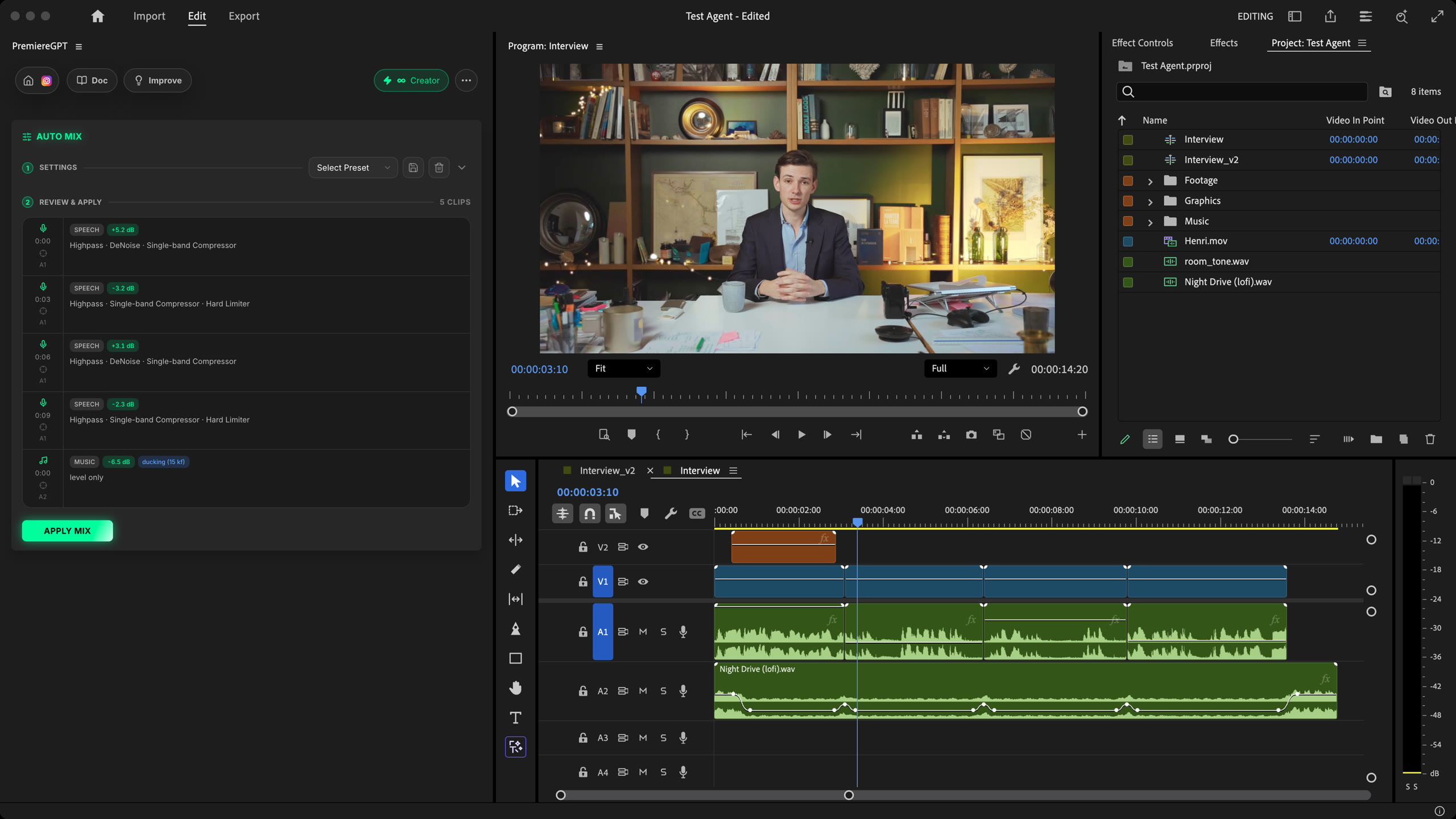
Brief
Name your platform and the voice and music balance, like "podcast mix for YouTube, music well under the voice". Optional.
Review & apply
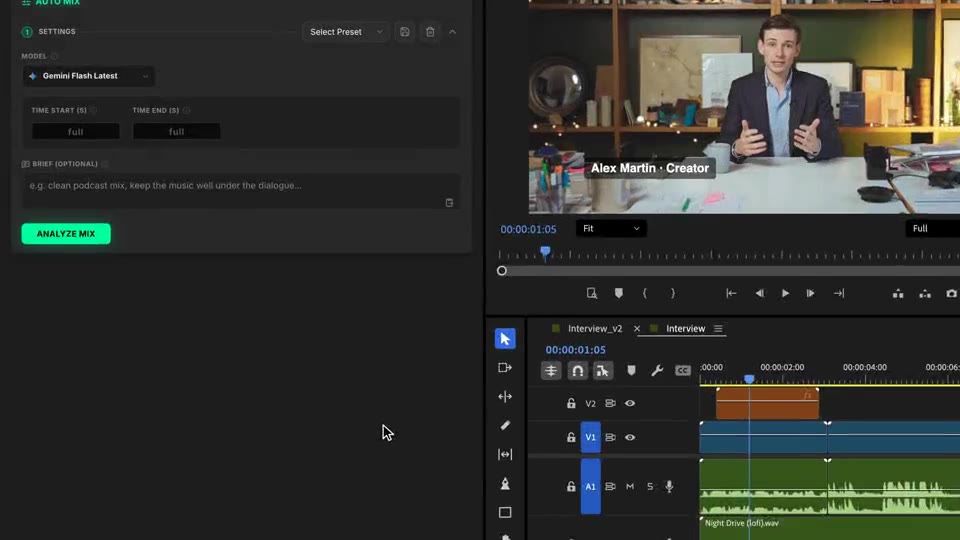
Each clip is read as speech, music or SFX and gets only what it needs. Review the plan, then apply it to your timeline.
Fine-tune
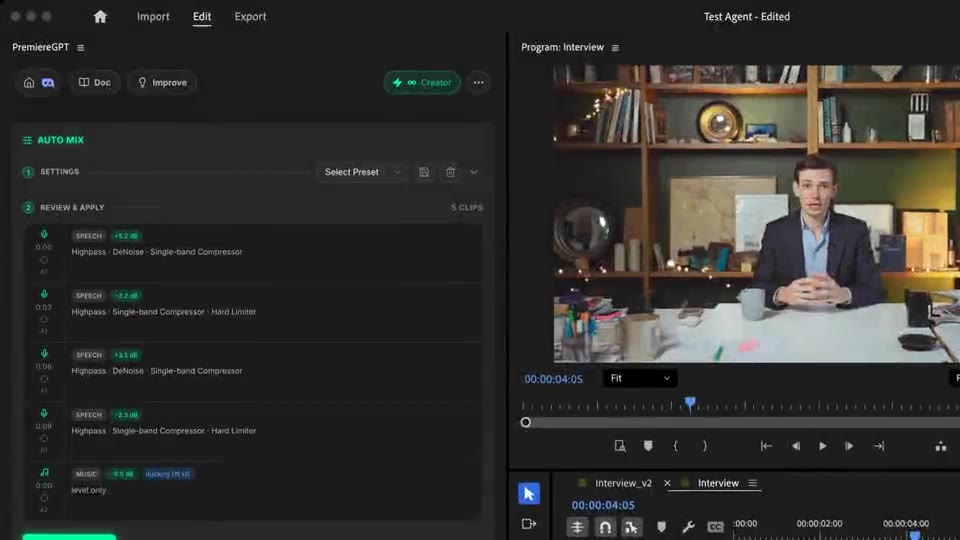
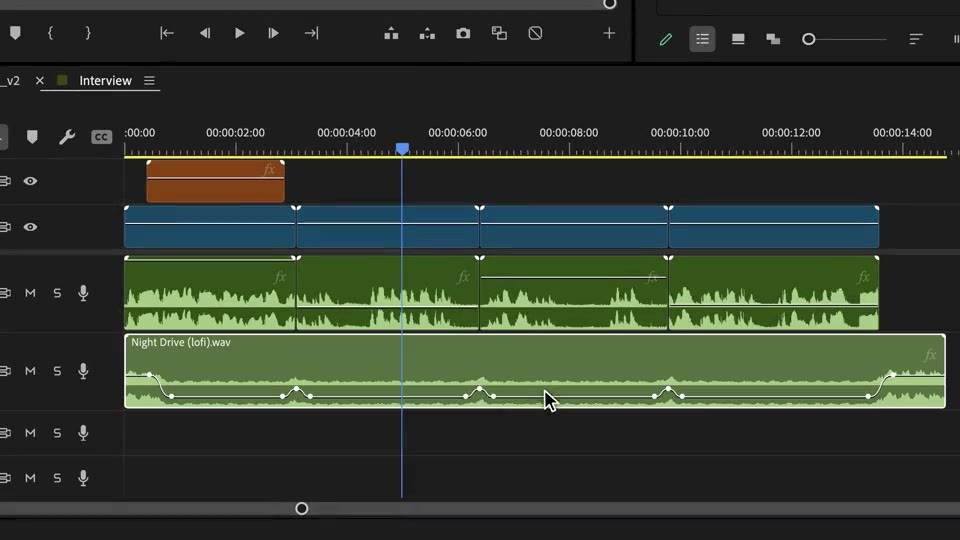
Everything lands as standard Premiere audio effects and volume keyframes. Drag a keyframe to reshape a duck, or undo it all.
What ships
Delivery targets: podcast -16 LUFS, YouTube -14 LUFS, broadcast -23 LUFS.
Roughly one minute of processing per hour of timeline.
See every clip's gain, effects and ducking before anything is applied.
The music dips before each line, holds under it and comes back after.
Standard Premiere audio effects and keyframes. Undo it all with Cmd/Ctrl+Z.
Stack the rest
Plain-English prompts that edit your real timeline.
Learn moreMotion design generated from a single prompt.
Learn moreAny GenAI model, native in Premiere. By Fal.AI.
Learn moreWord-by-word, animated captions in 99 languages.
Learn moreActive speaker detection, multicam autocut.
Learn moreAuto-detect silences and tighten the edit.
Learn moreRemoves bad takes & repetitions, follows your script.
Learn moreTurn 1h of content into 10 vertical viral clips.
Learn more0 spelling mistakes. GPT-5 corrected, native subtitles.
Learn moreAnimated MoGRT chapters from a single prompt.
Learn more1 audio → speaker-by-speaker tracks.
Learn moreEmotion-driven V2 zoom clips, generated.
Learn moreAI sound effects, placed on your timeline.
Learn moreSpell check every text on your timeline.
Learn moreAI kinetic text, from your own words.
Learn moreSafe zone guides for every feed.
Learn moreEvery short, exported in 1 click.
Learn morePro easing on your clips, in one click.
Learn moreAny emoji, placed on your timeline.
Learn moreAI color grading, matched shot to shot.
Learn moreBeat markers, placed on your music.
Learn moreYour b-roll, placed where it fits.
Learn moreYour clipboard, on the timeline.
Learn moreNew files, imported on their own.
Learn more

FAQ
It listens to every audio clip of your sequence, tells speech, music and SFX apart, and mixes them like a sound engineer: a level for each source, a cleaned-up voice, and the music ridden down under every line.
Only what each clip needs: level, high-pass, compression, de-noise, de-esser, limiter. A music bed gets a level and nothing else. Wherever music or SFX overlap speech, volume keyframes duck them under the voice.
The voice is the anchor: -16 LUFS for podcast (default), -14 LUFS for YouTube and social, -23 LUFS for broadcast. Name your platform in the brief and the whole mix re-anchors around it.
Yes. Analysis and application are separate. You see every clip with its type, gain, effects and ducking, then click Apply Mix.
Yes. The mix lands as standard Premiere audio effects and volume keyframes. Retune anything in Effect Controls, drag a keyframe to reshape a duck, or undo it all with Cmd/Ctrl+Z.
Premiere Pro only, on macOS (Intel and Apple Silicon) and Windows.