
0
Steps on autopilot: transcribe, read your b-roll, match, place.
Auto B-Roll transcribes your edit, reads the b-roll folder you pick and places each clip on a track above your Premiere Pro timeline, wherever it illustrates what is being said. It only uses your own footage.
Pick a folder, set how many b-roll per minute, get a full first layer to prune. No stock, no generation, no overlaps. Native to Premiere.
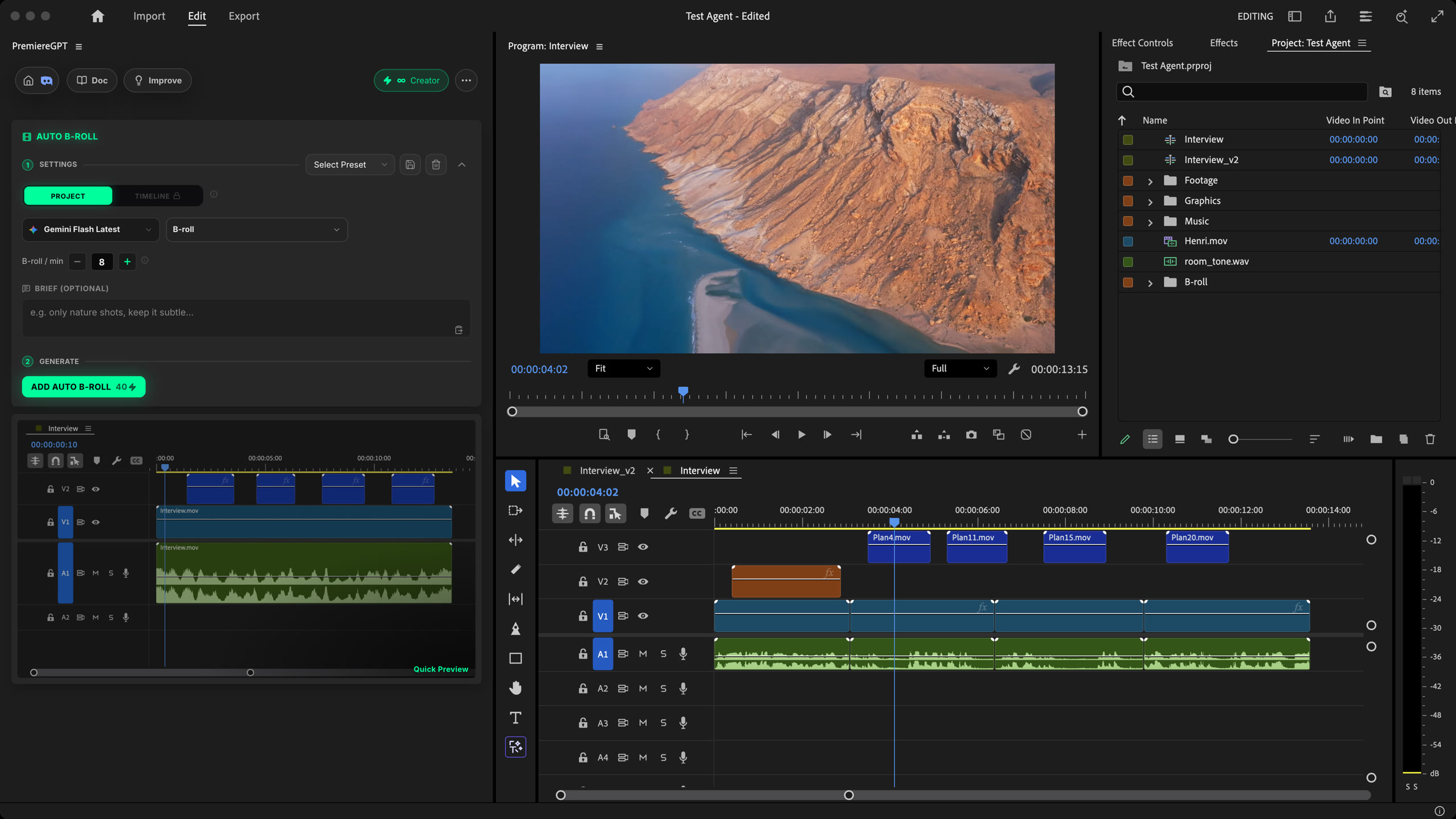
How it works
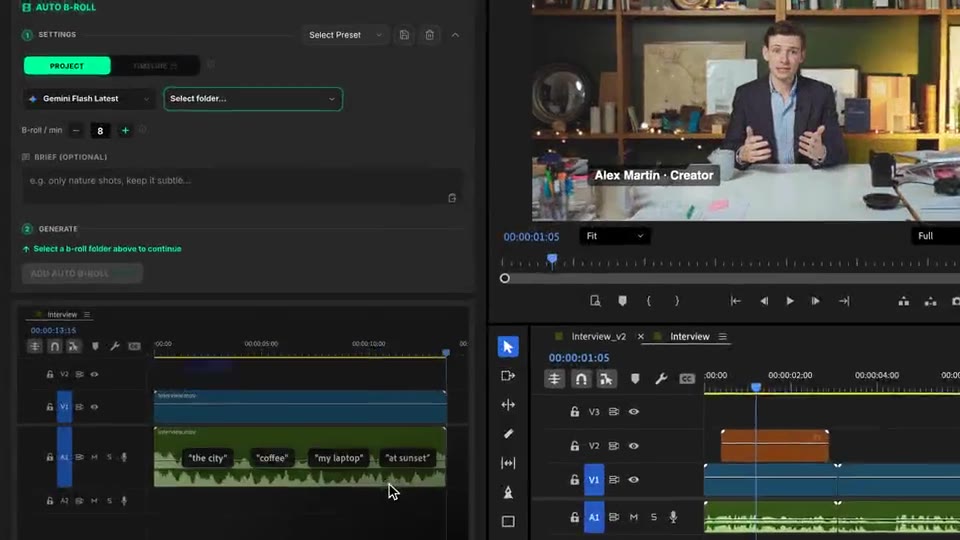
Settings
Choose a bin of your project, set how many b-roll per minute and add an optional brief.
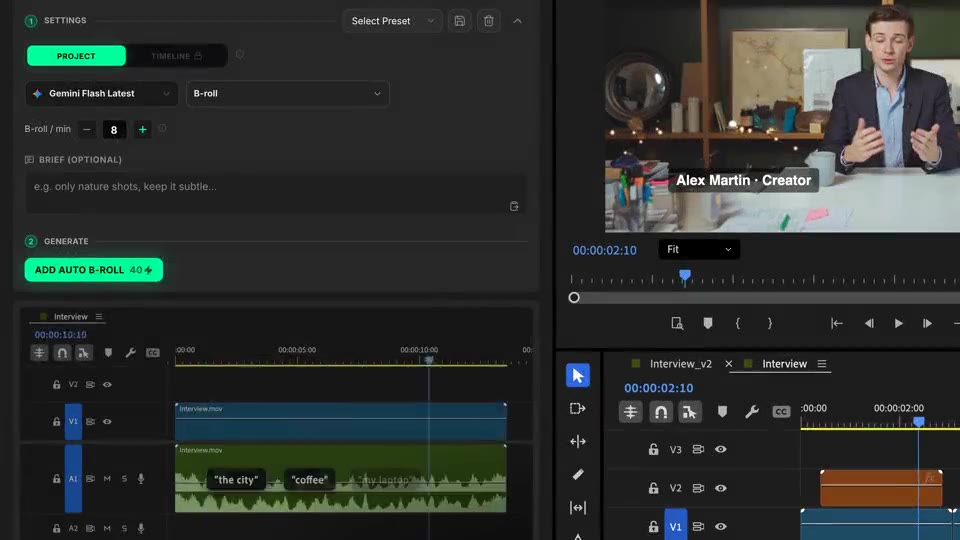
Generate
Your edit is transcribed, your clips are analyzed, then each passage gets a shot that illustrates it, on a track above your edit.
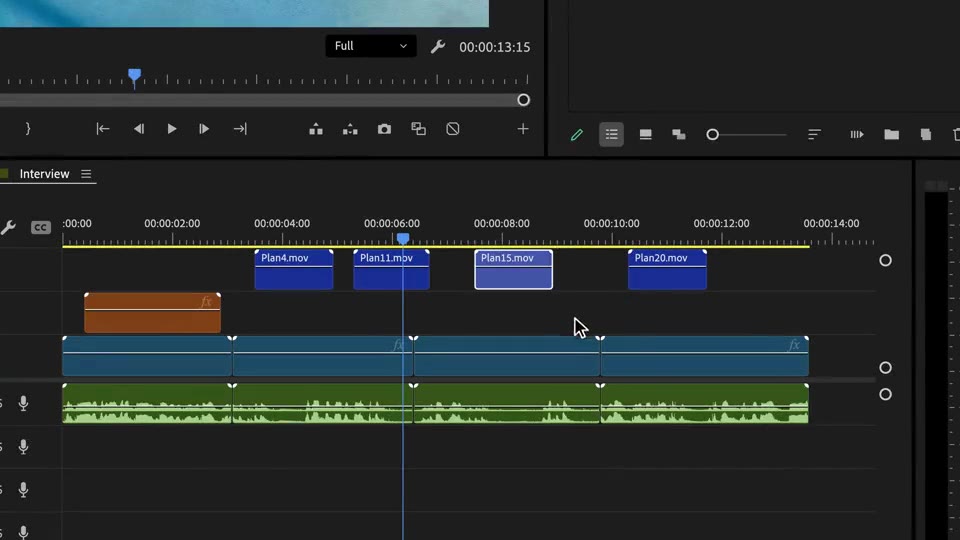
Prune
Every placement is a regular clip. Play it once, then move, trim or replace what you disagree with.
What ships
Steps on autopilot: transcribe, read your b-roll, match, place.
Your density. Start around 8 per minute for a standard illustrated video.
Clips come from a bin of your project. Nothing generated, nothing downloaded.
Placements never collide and a clip is never stretched beyond its own length.
Ordinary clips on a track above your edit. Your edit stays untouched.
Stack the rest
Plain-English prompts that edit your real timeline.
Learn moreMotion design generated from a single prompt.
Learn moreAny GenAI model, native in Premiere. By Fal.AI.
Learn moreWord-by-word, animated captions in 99 languages.
Learn moreActive speaker detection, multicam autocut.
Learn moreAuto-detect silences and tighten the edit.
Learn moreRemoves bad takes & repetitions, follows your script.
Learn moreTurn 1h of content into 10 vertical viral clips.
Learn more0 spelling mistakes. GPT-5 corrected, native subtitles.
Learn moreAnimated MoGRT chapters from a single prompt.
Learn more1 audio → speaker-by-speaker tracks.
Learn moreEmotion-driven V2 zoom clips, generated.
Learn moreAI sound effects, placed on your timeline.
Learn moreSpell check every text on your timeline.
Learn moreAI kinetic text, from your own words.
Learn moreSafe zone guides for every feed.
Learn moreEvery short, exported in 1 click.
Learn morePro easing on your clips, in one click.
Learn moreAny emoji, placed on your timeline.
Learn moreAI color grading, matched shot to shot.
Learn moreAI audio mixing for your whole timeline.
Learn moreBeat markers, placed on your music.
Learn moreYour clipboard, on the timeline.
Learn moreNew files, imported on their own.
Learn more
FAQ
It transcribes your edit, looks at every clip in the b-roll folder you pick, and places them on a track above your timeline wherever the visuals illustrate what is being said.
No. It only uses your own clips, from a bin of your project. Nothing is generated, nothing comes from a stock library.
You set the density, from 1 to 60 b-roll per minute. Around 8 per minute suits a standard illustrated video, 2 to 4 suits an interview. A high density on a small folder means repetition.
Matching is thematic, not literal: a clip fits if it relates to the passage in mood, setting or subject. Unused clips come first, placements never overlap, and a clip is never stretched beyond its own length.
Yes. The b-roll lands as ordinary clips on a track above your edit: move, trim, replace or delete anything. Your edit underneath stays untouched.
Works natively in Premiere Pro, on macOS (Intel and Apple Silicon) and Windows. Timelines up to 2 hours.