You're a professional editor. You've got a 90-minute podcast interview sitting in your timeline, already color-graded, already mixed. Your client wants six 60-second clips for Instagram Reels by end of day. So what do you do? You compress the whole thing, upload it to some browser-based tool, wait for it to process, watch it chop the footage into something barely usable, then download a 720p MP4 with a watermark slapped across the corner.
That's not a workflow. That's a punishment.
Tools like Opus Clip have their place — they're fine for a content creator who shoots on an iPhone and doesn't know what a sequence is. But if you're working in Adobe Premiere Pro, managing multi-track timelines, handling ProRes or BRAW files, and delivering broadcast-quality exports, the browser-based clip extraction model is a direct attack on your productivity. There's a better way, and it lives entirely inside your NLE.
The Hidden Cost of Browser-Based Clip Makers (The 'Roundtrip Tax')
Let's be precise about what the "roundtrip" actually costs you, because it's more than just the monthly subscription fee.
Every time you use a browser-based tool like Opus Clip, you're committing to a multi-step process that pulls you completely out of your Premiere environment. You export or compress a proxy, upload it to the cloud, wait for AI processing, review the output in a foreign interface, download the result, and then — if the clip is even usable — bring it back into Premiere to finish it properly. That cycle can eat 45 minutes to two hours depending on file size and your internet connection. Do that three times a week and you've lost a full workday every month to file transfer overhead alone.
And that's before we talk about what happens to your footage in transit.
Why Uploading Footage Is a Bottleneck for Pro Workflows
Most browser-based tools cap upload file sizes or transcode your footage to a compressed intermediate before analysis. That means the AI is making decisions about your best moments based on a degraded version of your content. If you're cutting a podcast recorded at 48kHz with a clean Rode mic, and the tool is analyzing a 128kbps AAC transcode, the speech detection accuracy drops. Nuance in tone, pacing, emphasis — all of it gets flattened.
There's also the raw data problem. If you're working on a documentary or a long-form interview series, your project files could be 50GB, 100GB, or more. Uploading that to a cloud service isn't just slow — it's often impossible within their file size limits. You end up making compromises: exporting a lower-res version, trimming the file, or manually pre-selecting sections before you even let the AI touch it. At that point, you're doing half the work yourself anyway.
Client confidentiality is another factor that rarely gets discussed. Uploading raw, unedited interview footage to a third-party cloud service is a non-starter on many commercial productions. NDAs exist for a reason. Your footage should stay on your machine until you decide otherwise.
The roundtrip tax isn't just time. It's quality degradation, security exposure, and cognitive overhead from context-switching out of your primary tool.
PremiereCopilot vs. Opus Clip: Why 'Direct-in-Timeline' Wins
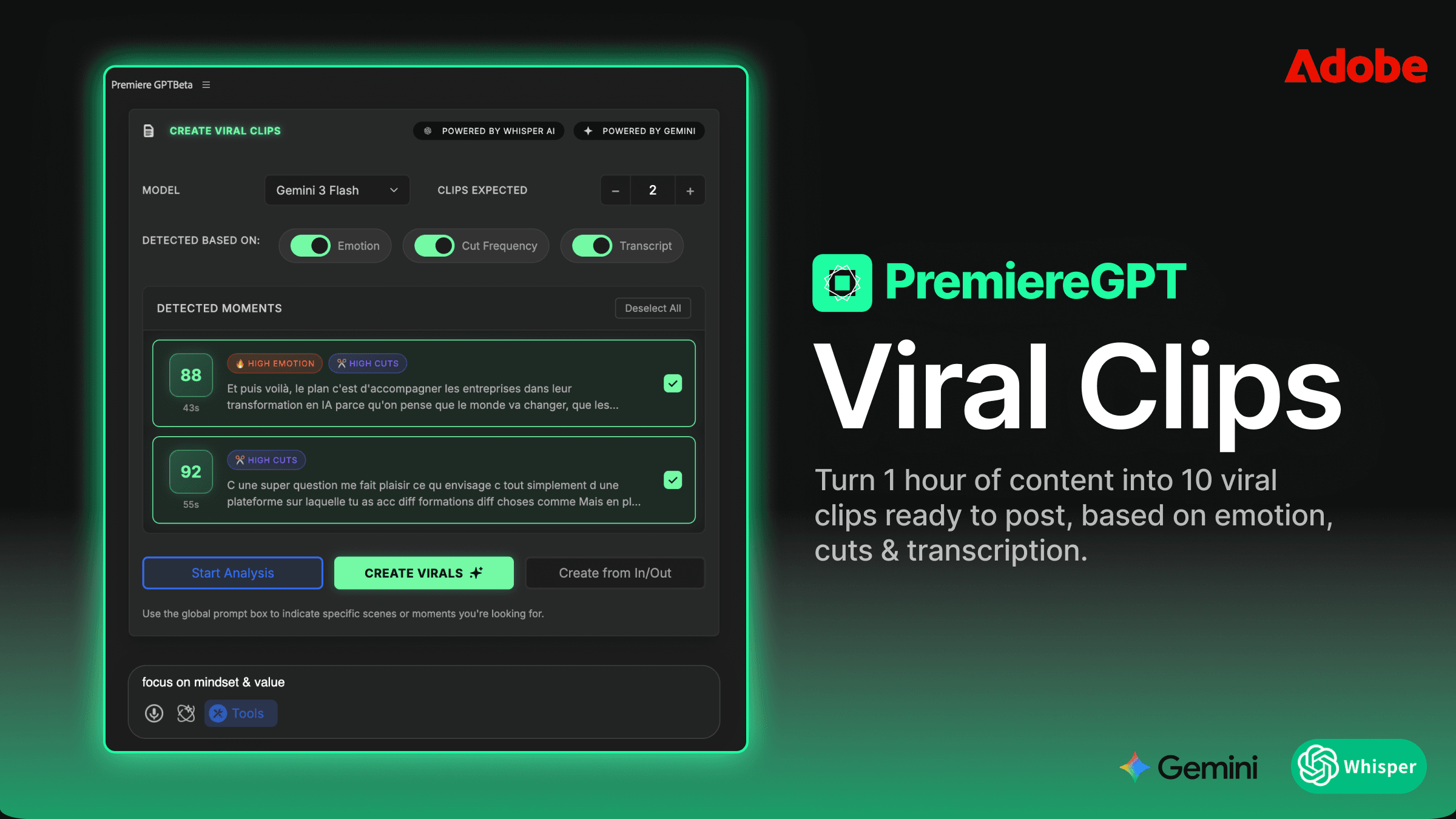
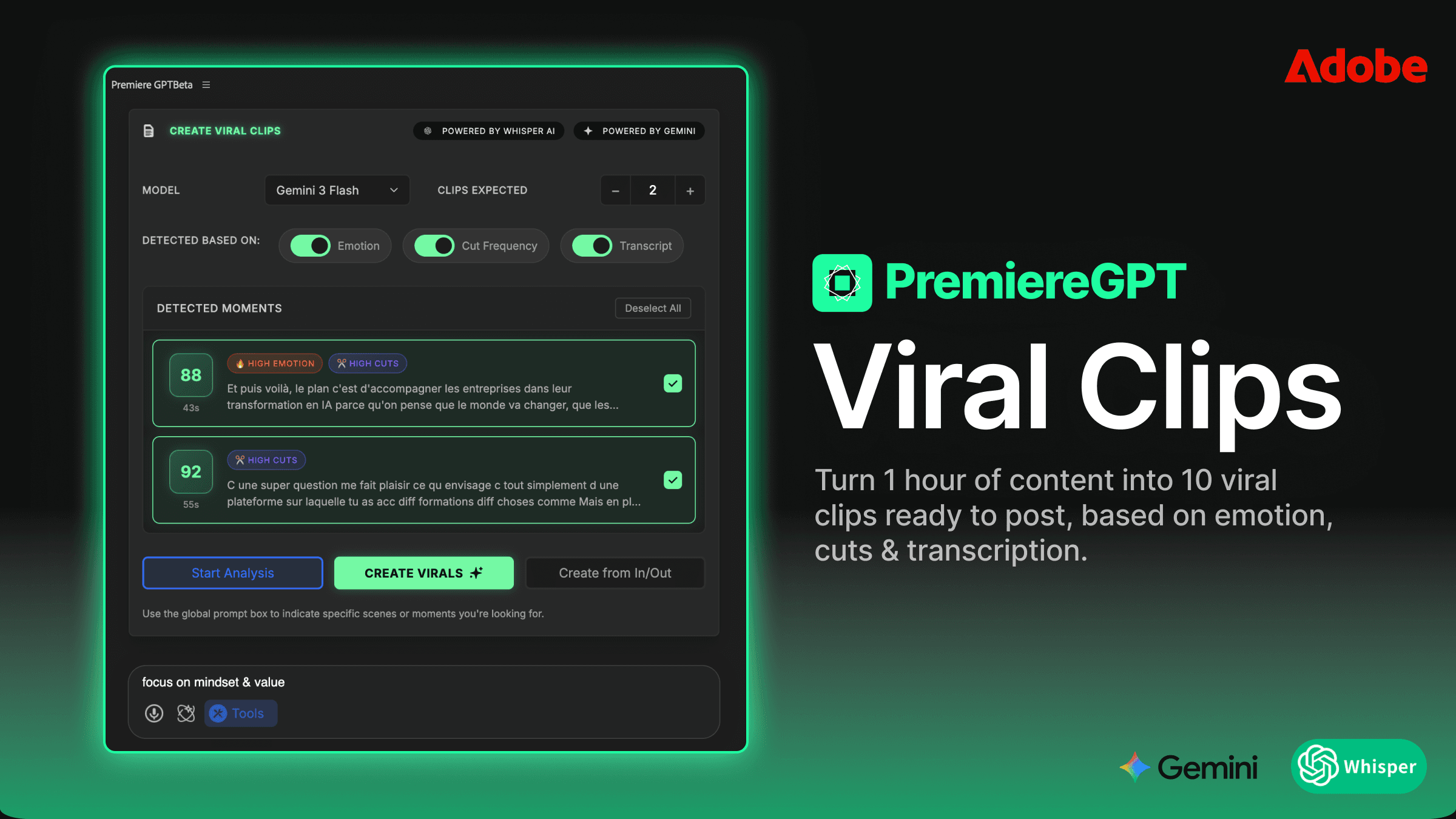
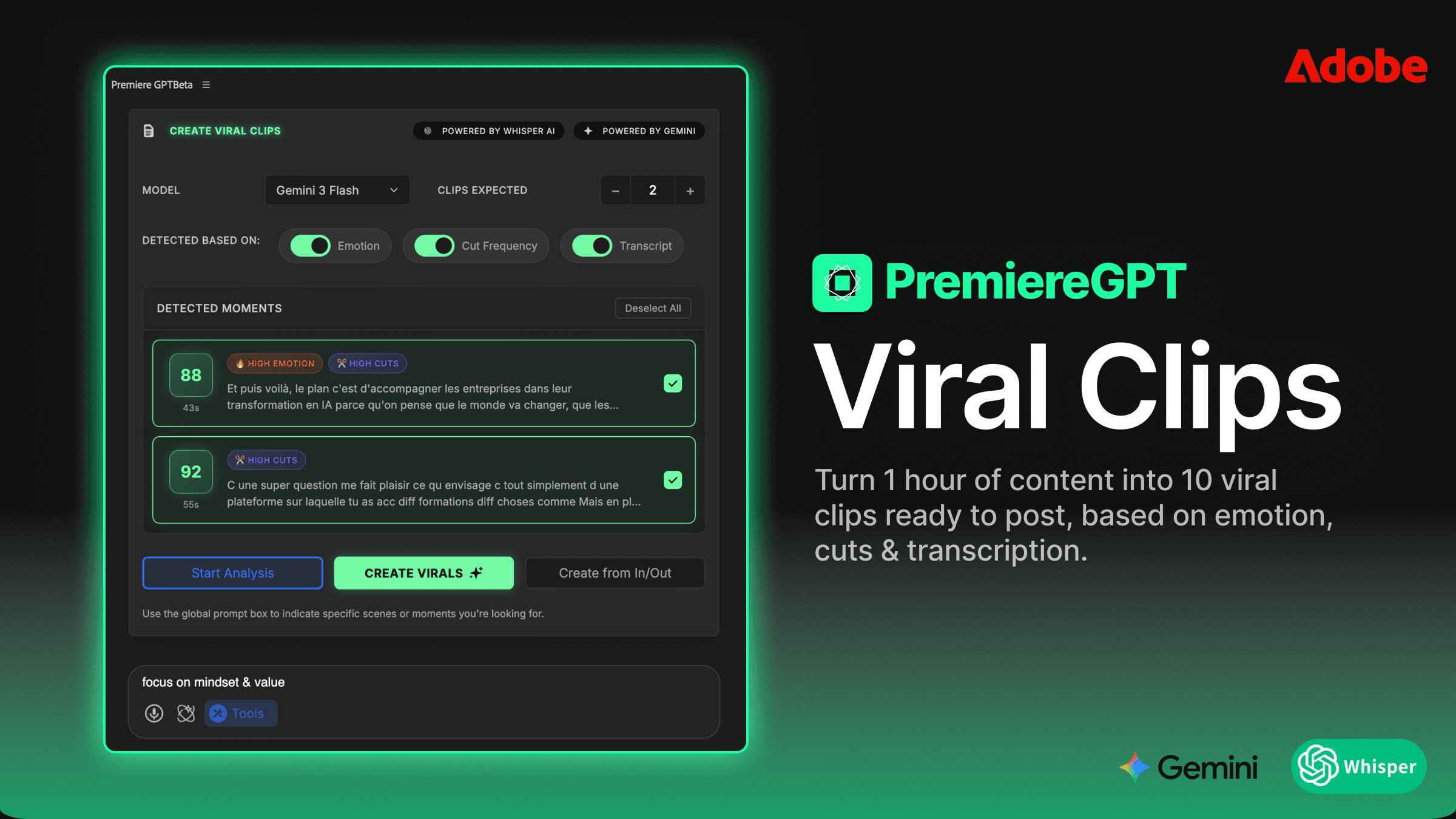
PremiereCopilot is an AI Copilot that operates as a native panel inside Adobe Premiere Pro. There's no upload step. There's no external processing queue. The AI reads your timeline, your audio, your markers, and your sequence structure directly — and it responds to natural language prompts to help you find moments, build sequences, and extract clips without ever leaving the app.
The architectural difference here is fundamental. Opus Clip is a content analysis tool that happens to output video. PremiereCopilot is an editorial assistant that understands your project as a Premiere project — sequences, bins, tracks, in/out points, the whole structure.
Understanding Audio Context Without the Cloud
When PremiereCopilot analyzes your timeline, it's working with the actual audio data from your source files — not a re-encoded proxy streamed to a remote server. This matters enormously for accuracy.
Speech recognition and moment detection are only as good as the audio they're analyzing. On a clean dialogue track, the difference might be marginal. But on a real-world production — room tone, cross-talk, background music, compressed phone audio in an interview — local analysis on your original files consistently outperforms cloud tools working on a degraded copy. The AI can detect a laugh, a strong statement, a rhetorical question, or a moment of genuine emotion with much higher fidelity when it's reading the actual waveform you captured.
Beyond raw audio quality, PremiereCopilot understands timeline structure. It knows which track is your primary dialogue, which is your B-roll, which is your music bed. It can cross-reference a high-energy audio moment with what's happening visually on V1 and V2. That kind of multi-track contextual awareness is simply not possible when you've flattened your timeline to a single MP4 and uploaded it to a browser.
No Watermarks and Full Resolution Control
This one should be obvious, but it's worth stating plainly: when you extract clips using PremiereCopilot, the output is a Premiere sequence. You export it using Adobe Media Encoder with whatever codec, bitrate, and resolution spec your deliverable requires. H.264 at 80Mbps for a high-quality social post? Done. ProRes 422 HQ for a client archive? Done. HEVC at 4K for a YouTube Short? Done.
With Opus Clip's free tier, you get clips at capped resolution with a watermark. With their paid tiers, you get higher resolution but you're still locked into their export pipeline, their compression settings, and their bitrate decisions. A clip that was originally shot in 4K LOG gets delivered to your client as a 1080p H.264 file that went through two rounds of lossy compression. That's not acceptable on a professional delivery.
Your sequences, your exports, your specs. That's what direct-in-timeline means in practice.
How to Prompt Your Way to Viral Hooks
The practical workflow is where this gets genuinely useful. Instead of watching a 90-minute interview to manually find the quotable moments, you type a prompt into the PremiereCopilot panel and let the AI surface them for you.
This is not magic. It's structured natural language querying against your timeline's content. The more specific your prompt, the more precise the output. Vague prompts get vague results. Specific prompts get clips you can actually use.
Using the AI Copilot to Find Specific Topic Mentions and High-Energy Moments
Say you've got a two-hour podcast episode about personal finance. You don't want a random "best moments" reel. You want the specific moment the guest talks about their biggest financial mistake, because that's the hook that performs on Reels. You type: "Find the section where the guest discusses a personal failure or financial loss and mark the in and out points." PremiereCopilot scrubs the transcript, identifies the relevant section, and drops markers on your timeline. You're looking at the clip in under 30 seconds.
For high-energy detection, you can prompt for tonal shifts: "Find moments in the dialogue where the speaker's pace increases significantly or where there's a strong emotional reaction." This is particularly effective for gaming content, sports commentary, or motivational speaking — any content where energy spikes correlate with shareability.
You can also prompt for structural hooks: "Find any moment where the speaker makes a bold claim or a counterintuitive statement." These are your thumbnail moments, your caption hooks, your first three seconds of a Reel. The AI identifies them; you decide which ones fit your content strategy.
Creating Social Sequences Automatically with One Command
Once you've identified your hooks, PremiereCopilot can do the assembly work. A prompt like "Create a new sequence from the three highest-energy moments in this interview, each trimmed to under 60 seconds, and arrange them in order of energy level" will build you a working sequence in your Project panel. It's not a finished edit — and it shouldn't be. It's a rough assembly that you then refine with your own editorial judgment.
This is the correct division of labor. Let the AI handle the time-consuming scrubbing and assembly. You handle the craft: the cut timing, the pacing, the music, the graphics. The AI gets you to the starting line faster; your skills take it to the finish.
For podcast editors specifically, this workflow can compress a two-hour clip extraction session into 20 minutes. That's not an exaggeration — it's the math of eliminating the scrubbing step entirely.
Killing the Subscription Bloat
Let's talk money, because this is where the argument becomes impossible to ignore for any editor running their own business.
The average professional editor in 2024 is paying for somewhere between three and seven AI tool subscriptions. There's the transcription tool, the noise removal tool, the clip extraction tool, the caption generator, the thumbnail AI. Add those up and you're looking at $80 to $150 per month in SaaS overhead — tools that each require their own login, their own interface, their own upload-and-wait cycle.
Comparing the $300/Year Cloud Cost vs. the $59 Lifetime License
Opus Clip's Pro plan runs approximately $29/month, which is $348 per year. That's for a tool that operates outside your NLE, compresses your footage, and puts its branding on your exports unless you're on the right tier. Over three years, that's over $1,000 for a single-purpose cloud tool.
PremiereCopilot's early access pricing is a one-time $59 license. Not per month. Not per year. One payment, permanent access. For a working editor who bills clients for their time, the ROI calculation is straightforward: if PremiereCopilot saves you two hours of roundtrip overhead per week, it pays for itself in the first week of use.
The $59 price point is explicitly positioned as early access — meaning it will increase as the product matures. If you're a Premiere-native editor who regularly extracts social clips from long-form content, there is no rational argument for continuing to pay monthly for a browser-based tool when a local, timeline-native alternative exists at a fraction of the annual cost.
This isn't about being cheap. It's about being strategic with your toolchain. Subscription bloat is a real operational cost, and every tool you can replace with a one-time purchase improves your margin.
Customizing Your Clips: Keeping the Edit Non-Destructive
Here's a workflow advantage that doesn't get enough attention: when PremiereCopilot creates a clip sequence for you, it creates an actual Premiere Pro sequence. Not a rendered file. Not a baked export. A fully editable sequence with all your original source clips, all your original cuts, all your original audio tracks intact.
This is fundamentally different from what browser-based tools give you. Opus Clip gives you a flat video file. If the cut is wrong by half a second, you're either re-uploading and re-processing, or you're doing a rough trim in a basic editor. Neither option is acceptable if you care about the quality of your output.
Why Having Clips as Editable Premiere Sequences Beats 'Baked-In' AI Exports
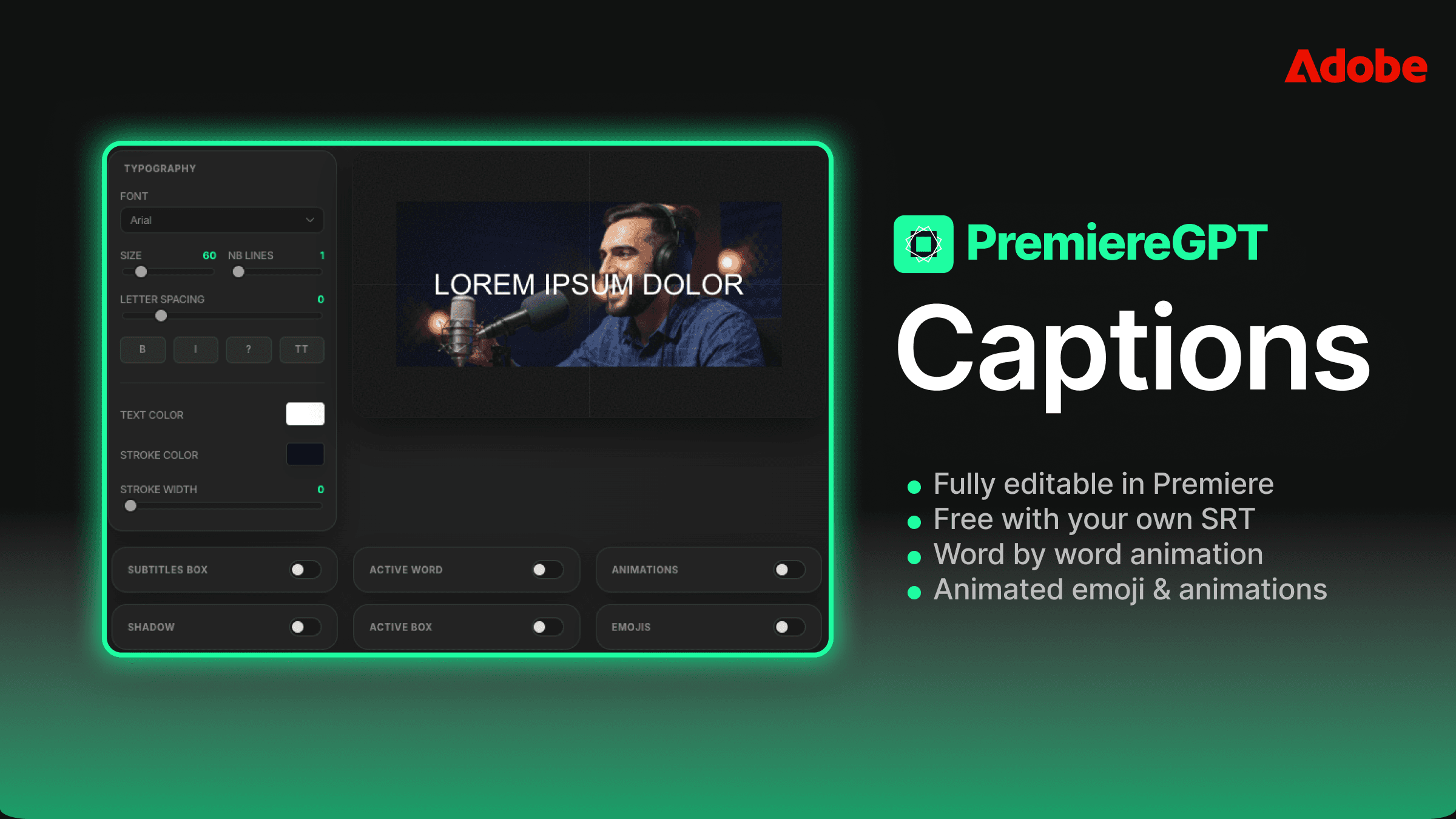
When your AI-extracted clip lives as a Premiere sequence, every element of that clip remains independently editable. You can slip a clip to get a better frame. You can adjust the audio gain on a specific line. You can add a cut, extend a shot, or pull in a reaction cutaway from your B-roll bin. You can apply your color grade, drop in your caption preset, add your lower thirds — all within the same environment you've been working in for the entire project.
Non-destructive editing is a core principle of professional post-production. AI tools that bake their output into a flat file are asking you to abandon that principle the moment you let them touch your footage. PremiereCopilot doesn't ask you to make that trade.
Consider a practical example: you've extracted a 55-second clip from a podcast episode. The AI correctly identified the hook and the punchline, but there's a three-second tangent in the middle that kills the pacing. In a flat export from Opus Clip, fixing that requires re-uploading or manual re-editing in a separate tool. In a PremiereCopilot-generated sequence, you razor the tangent, close the gap, and you're done in 45 seconds. The sequence retains all its properties, all its effects, all its metadata.
This is what it means to have an AI that respects your workflow instead of replacing it with an inferior one.
The clips you deliver to clients should reflect your editorial judgment, not the output limitations of a cloud tool's export pipeline. Keeping everything inside Premiere, as editable sequences, with full resolution and codec control, is the professional standard. PremiereCopilot is built around that standard. Opus Clip is built around convenience for users who don't have a standard to begin with.
If you're serious about building a repeatable, high-output social clip workflow inside Premiere Pro — without monthly fees, without watermarks, and without ever leaving your timeline — the next step is getting specific about your prompts.
Download the free Viral Hook Prompt Library — a PDF guide with 20+ tested natural language prompts for PremiereCopilot, organized by niche: Podcasts, Gaming, and Education. Each prompt is designed to surface specific types of hooks, jokes, emotional peaks, and CTA moments so you can stop guessing and start extracting clips that actually perform. The prompts are ready to copy-paste directly into the PremiereCopilot panel. Get the library free and start cutting smarter today.