The Localization Tax (Why Manual Translation Is Killing Your Margins)
You know the drill. Client needs Spanish, French, and Brazilian Portuguese versions of a 20-minute corporate video. You export a rough cut, upload it to some browser-based transcription tool, wait for the transcript, copy it into a translation service, clean up the mess it made of every technical term and proper noun, format it into an SRT, import it back into Premiere, and then do that entire loop two more times for the other two languages.
That's not a workflow. That's a tax. And it's one you're paying in hours, not dollars—which is worse, because hours don't show up on an invoice.
Let's be specific about the cost. A competent editor doing manual localization for three languages on a 20-minute video can easily burn four to six hours per language cycle. That's twelve to eighteen hours of work that isn't color grading, isn't sound design, isn't anything that actually makes the edit better. It's administrative overhead dressed up as post-production.
Browser-based tools made this slightly less painful for a while. But "slightly less painful" is not the same as "solved." The fundamental problem with every roundtrip workflow is context loss. The moment you leave the timeline, you lose the relationship between the audio, the visual, and the meaning. A transcription tool doesn't know that "the sequence" means something very specific in your tutorial series. It doesn't know that your host's name is spelled a particular way, or that your client's product name is a proper noun that should never be translated. It just generates text, and you spend the rest of your afternoon fixing it.
There's a direct line between this inefficiency and your margins. Agencies that can't crack the localization problem either charge clients a premium that makes them uncompetitive, or they absorb the cost and watch their hourly rate collapse. Neither is a good outcome. The editors who are scaling their localization work right now are the ones who figured out how to keep the entire process inside the NLE.
Why Whisper's 99.5% Accuracy Is Only Half the Battle (The Role of GPT-5.3 Context)
OpenAI's Whisper model is genuinely impressive at transcription. A 99.5% word error rate accuracy on clean audio is not marketing copy—it's a real benchmark, and it holds up in practice across most professional recording conditions. If your editor is well-miked and your room is treated, Whisper will give you a clean transcript faster than any human typist.
But here's the thing: transcription accuracy and translation quality are two completely different problems. Whisper is solving a speech-to-text problem. The moment you ask it to also handle translation, you're asking a model that was trained primarily on acoustic pattern recognition to make semantic and cultural decisions. That's not what it was built for.
This is where GPT-5.3 enters the picture, and why the hybrid architecture matters. GPT-5.3 operates at the language model level. It understands context, register, idiomatic expression, and the relationship between sentences. When you feed it a Whisper transcript and ask it to translate, it's not doing a word-for-word substitution. It's reading the full passage, understanding the intent, and reconstructing that intent in the target language.
The practical difference shows up immediately in three areas. First, proper nouns: a pure Whisper translation will mangle brand names, product names, and people's names because it has no way to know they shouldn't be translated. GPT-5.3, when properly prompted, preserves them. Second, technical jargon: industry-specific language that has no direct equivalent in another language gets handled with actual reasoning rather than a dictionary lookup. Third, tone and register: a tutorial that uses casual, direct language in English doesn't automatically become formal and stiff in French—GPT-5.3 can maintain the register if you tell it to.
The combination of Whisper for transcription accuracy and GPT-5.3 for contextual translation is not a redundancy. They're solving different halves of the same problem, and you need both halves solved to produce subtitles that don't embarrass you or your client.
Moving Beyond English: How to Generate Subtitles for 99 Languages Simultaneously
The standard Premiere Pro Text panel workflow caps out at whatever your patience level is for manual work. You can generate captions in one language, you can do basic transcription, but the moment you need to scale to multiple languages, you're back to the roundtrip loop. The panel was not designed with localization at scale in mind.
A Whisper/GPT-5.3 plugin architecture changes the fundamental math here. Instead of processing one language at a time, you define your target languages upfront, and the pipeline processes all of them against the same master transcript in a single pass. The Whisper transcription happens once. The GPT-5.3 translation layer then fans out to every target language in parallel, using the same source context for each.
This matters technically because it eliminates translation drift. When you translate sequentially—English to Spanish, then English to French, then English to German—each translation is independent, and small errors or stylistic choices don't compound. But more importantly, the source context is identical for every language, so you're not introducing variance at the transcription layer that then propagates through every downstream translation.
In practical terms: you set your 99 target languages once. You run the process. You get 99 SRT files, all timed to the same master sequence, all derived from the same Whisper transcript. The output lands directly in your project bins, labeled by language code, ready to be applied to the corresponding sequence.
The workflow doesn't care whether you need two languages or ninety-two. The processing time scales, but your manual effort doesn't.
Setting Up the Prompt-Based Correction (Teaching the AI Your Niche Jargon)
This is the feature that separates a professional localization tool from a consumer transcription app, and it's worth spending real time on the setup. Prompt-based correction lets you inject a custom instruction set into the GPT-5.3 processing layer before it touches your transcript. You're essentially writing a style guide that the model reads before it starts translating.
A well-constructed correction prompt for a video editing tutorial channel might look something like this: preserve all proper nouns including software names, plugin names, and keyboard shortcuts in their original form; maintain a direct, instructional tone equivalent to the source; do not translate the following brand names: [list]; when the speaker uses the term "sequence," always translate it as the direct equivalent in the target language's professional video editing vocabulary, not the generic word for "sequence."
That level of specificity is what prevents the GPT-5.3 layer from making well-intentioned but wrong decisions. The model is capable of reasoning, but it needs your domain knowledge to reason correctly. You know that "bin" means a project folder in Premiere. You know that your host always refers to the "pancake timeline" technique by that specific name. The model doesn't know any of that until you tell it.
Build your correction prompt once per project type and save it as a template. A corporate explainer prompt is different from a YouTube tutorial prompt, which is different from a documentary prompt. The fifteen minutes you spend writing a solid prompt the first time will save you correction passes on every subsequent project in that category.
One additional technique worth implementing: include a glossary block at the end of your prompt. A simple two-column list of source terms and their approved translations in each target language gives the model an explicit reference to check against. For clients with strict brand language requirements, this is non-negotiable.
Infinite Translations vs. Per-Minute Billing (The Math of the $59 Lifetime License)
Let's run the numbers, because this is where the business case becomes undeniable.
The dominant browser-based transcription and translation tools bill by the minute of audio processed. Rates vary, but a representative figure is somewhere between $0.10 and $0.25 per minute of audio, per language. For a 20-minute video translated into five languages, you're looking at $10 to $25 per project at the low end. That sounds manageable until you're doing fifteen projects a month, and suddenly you're spending $150 to $375 monthly on a tool that still requires a browser roundtrip and still doesn't know your jargon.
Over twelve months, that's $1,800 to $4,500 in subscription costs. For a tool that creates workflow friction.
A $59 lifetime license with unlimited translations doesn't have a per-minute meter running. The twentieth language on a project costs the same as the first. The fiftieth project this year costs the same as the first. The math inverts completely: the higher your volume, the better the value proposition becomes. At fifteen projects per month with five languages each, you've recouped a $59 investment in roughly the first project of the first month.
The more important point is structural. Per-minute billing creates a perverse incentive to do less localization than you should. When every language costs money, you start making decisions about which markets are worth serving based on tool costs rather than client needs or audience size. A flat-rate model removes that friction entirely. You translate into every language that makes sense for the content, without running a mental cost-benefit calculation each time.
For agencies pitching localization packages to clients, this also changes your pricing model. When your marginal cost per additional language approaches zero, you can bundle languages into flat-rate packages without worrying about your costs scaling linearly with the bundle size. That's a competitive advantage in a proposal.
Workflow: From Master Sequence to Localized Exports in 3 Clicks
Here's what the actual in-Premiere workflow looks like when it's set up correctly. No browser tabs. No file exports. No clipboard gymnastics.
You finish your master sequence. Picture lock, audio mixed, graphics finalized. Open the plugin panel—it lives in the same workspace as your Text panel, docked wherever you prefer. Your master sequence is already selected as the source. Step one: select your target languages from the language list. You can save language sets as presets, so if you always deliver Spanish, French, and German, that's a one-click selection.
Step two: apply your correction prompt. If you've saved project-type templates, you're selecting from a dropdown. If this is a new project type, you're pasting in your prepared prompt. Either way, this takes under thirty seconds.
Step three: run the process. Whisper ingests the audio from your sequence directly—no export required, because the plugin reads the audio from the Premiere timeline via the API. GPT-5.3 processes the transcript against each target language using your prompt. The output is a set of SRT files and, optionally, caption tracks that are automatically imported back into your project bins, labeled by ISO language code.
From that point, applying a caption track to a localized sequence is a drag-and-drop operation. If you're delivering separate exports per language, you duplicate your master sequence, apply the corresponding caption track, and export. If you're delivering a single file with embedded subtitle streams, the SRTs are already formatted for that workflow.
The three-click description is not an exaggeration for a configured workflow. The setup time is front-loaded into the prompt template and language preset creation, which you do once. After that, the per-project execution is genuinely that fast.
Best Practices for SRT Export and Auto-Importing
Clean SRT output requires attention to a few technical parameters that are easy to overlook and painful to fix downstream.
Character limits per line vary by delivery platform and viewing context. Broadcast subtitling standards typically cap at 37 characters per line with a maximum of two lines. Online platforms are more permissive—YouTube and Vimeo will handle 42 characters per line without display issues on most screen sizes—but going beyond that creates readability problems on mobile. Set your character limit in the export settings before processing, not after. Reformatting subtitle timing after the fact to accommodate shorter line lengths is a significant manual effort.
Reading speed is the other timing parameter that separates professional subtitles from amateur ones. The standard for adult viewers is 17 characters per second. For content aimed at younger audiences or educational contexts, 13 characters per second is safer. GPT-5.3 translations can run longer than the source in some language pairs—German and Finnish are notorious for compound words that expand significantly—so building in a reading speed check as part of your export validation catches timing violations before they become a client revision.
For auto-importing back into Premiere, name your SRT files with the ISO 639-1 language code as a suffix before they land in your bins. projectname_es.srt, projectname_fr.srt, projectname_de.srt. This naming convention makes batch operations and sequence labeling significantly cleaner, especially when you're managing a project with ten or more language deliverables.
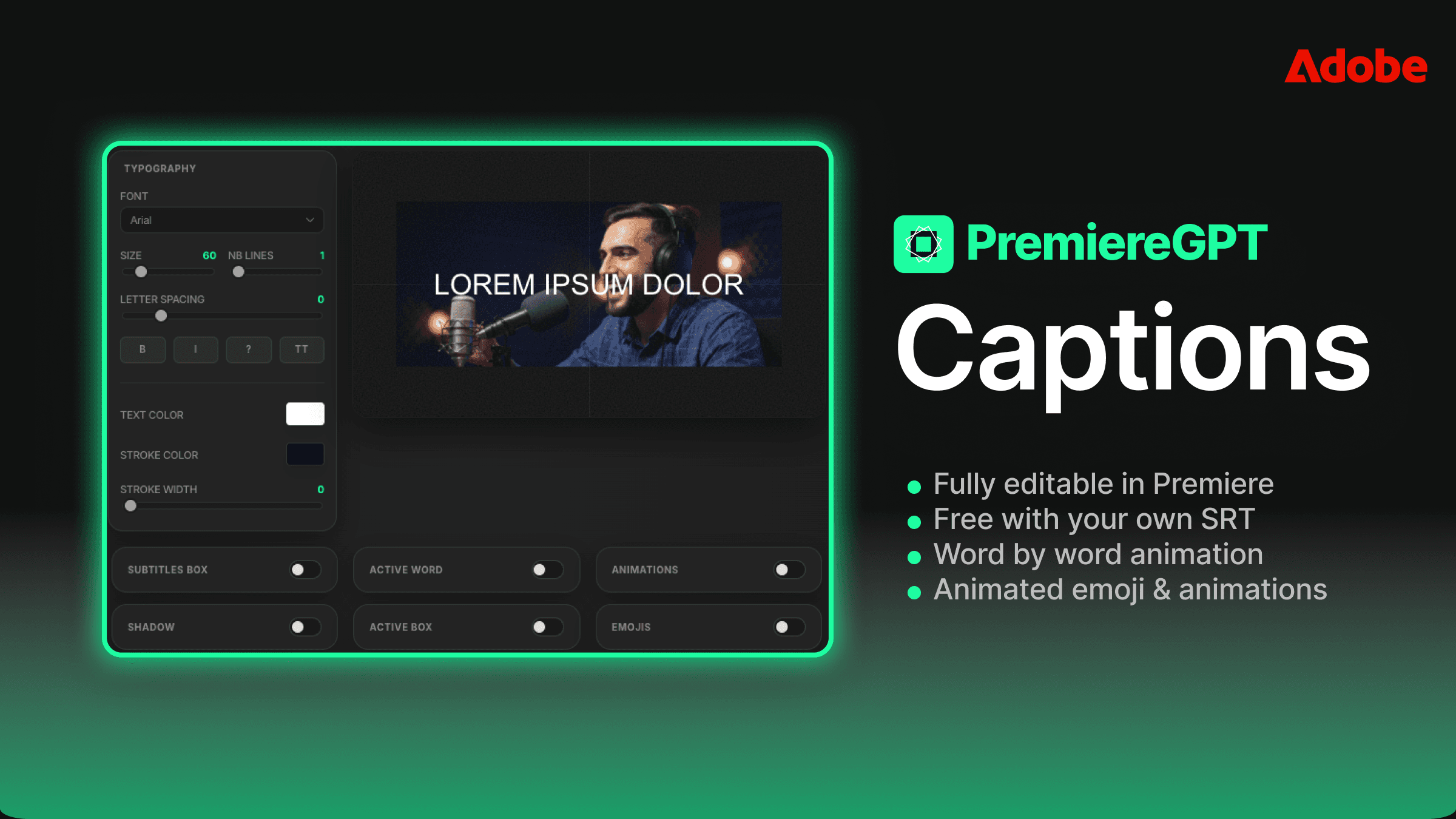
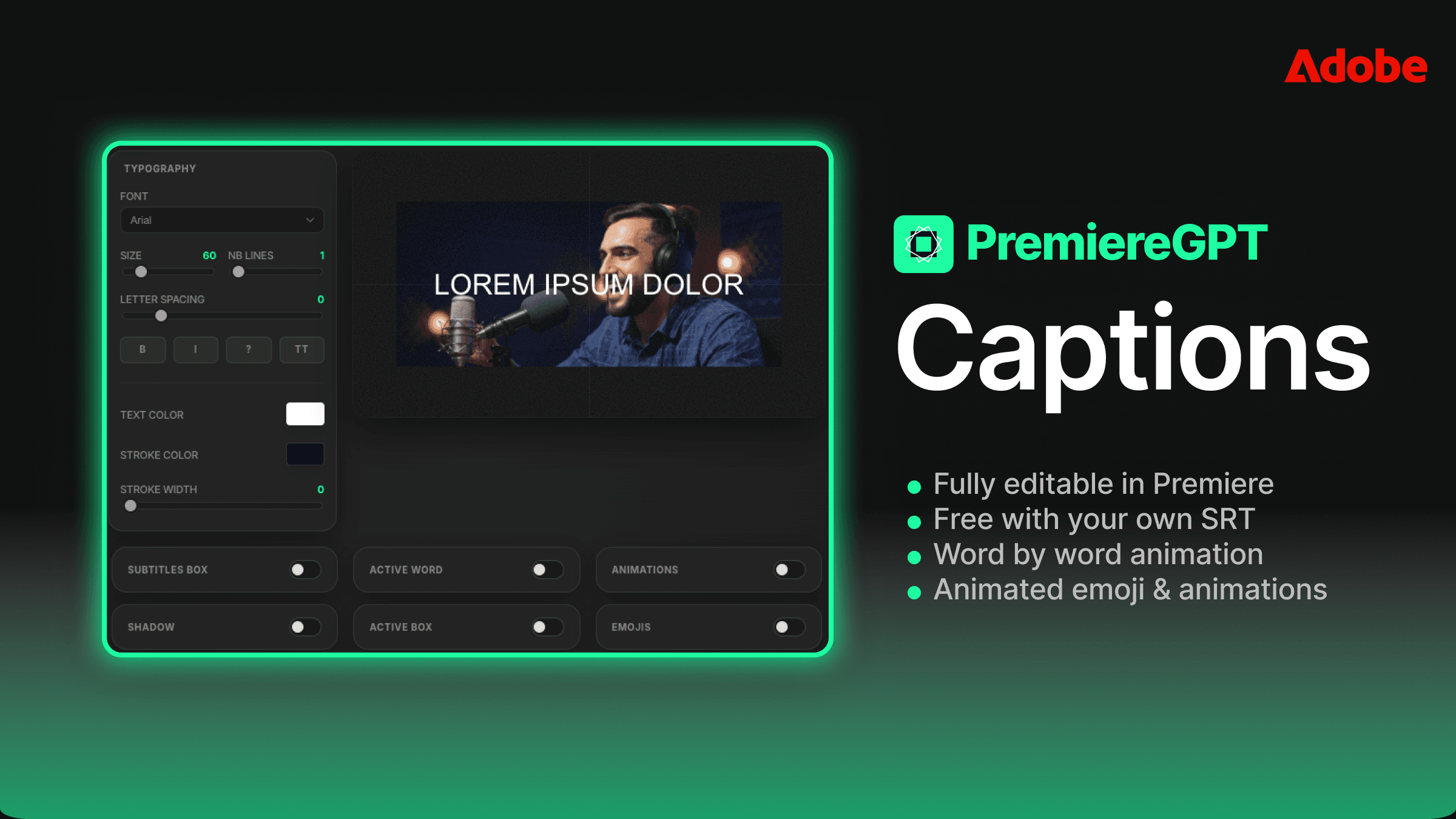
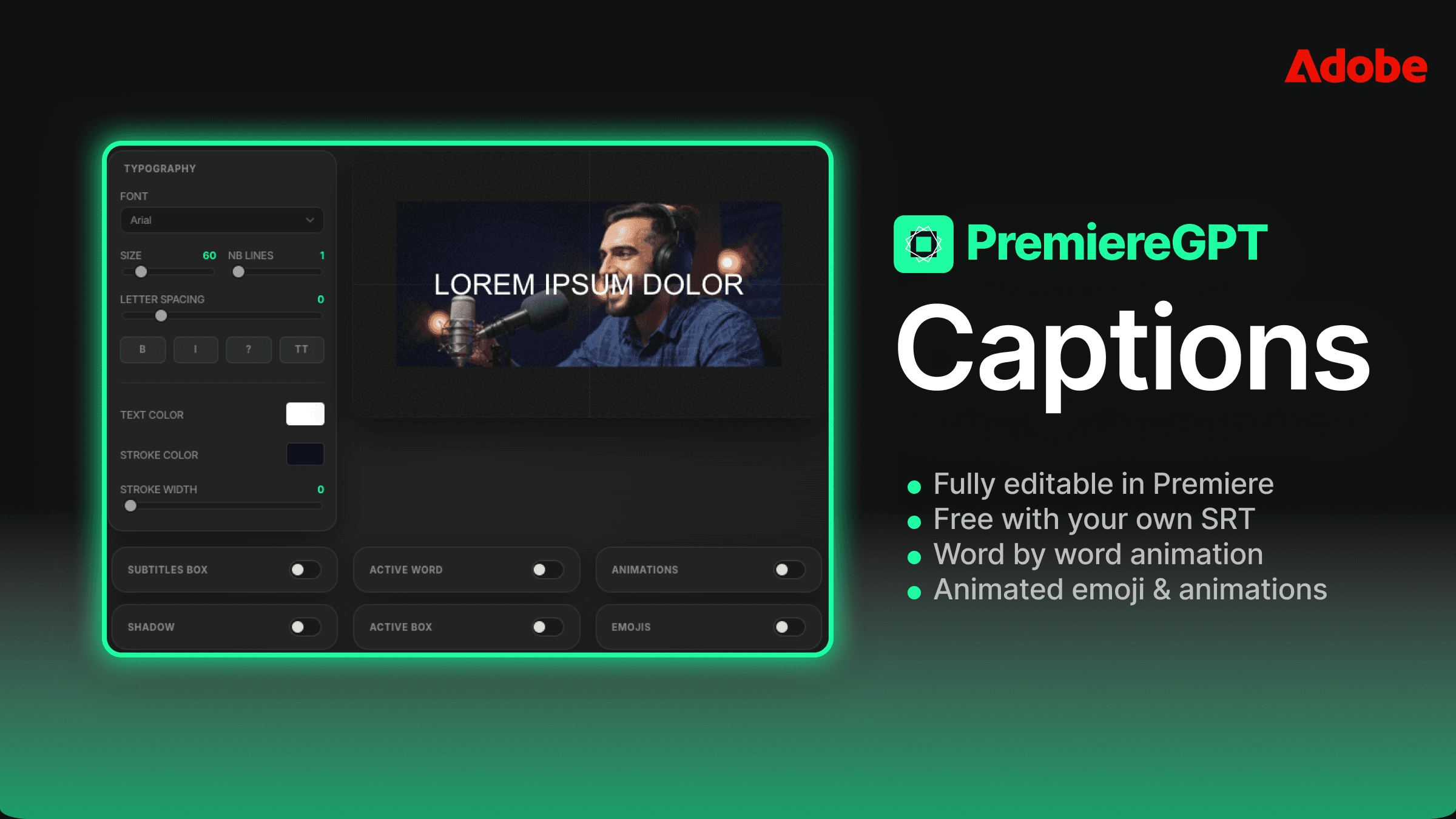
Font safety for localized captions is a separate issue that trips up a lot of editors. A caption preset that uses a custom font will display correctly on your machine and break on every other machine that doesn't have that font installed. For SRT deliverables that clients will use independently, stick to system-safe fonts or embed font information explicitly in your delivery specs. For burns, this is less of an issue, but document your font choices in your delivery notes regardless.
Frame rate alignment between your master sequence and your SRT timing is non-negotiable. An SRT generated against a 29.97fps timeline will drift against a 25fps sequence. Confirm your sequence frame rate before running the transcription process, and confirm it again before export. It's a thirty-second check that prevents a caption track that's half a second off by the end of a twenty-minute video.
The editors scaling their localization work aren't doing more manual work. They're doing the same work once, with a system that multiplies the output. The browser roundtrip isn't just slow—it's a structural bottleneck that caps how much localization volume you can handle. Remove the bottleneck, and the volume ceiling disappears.
If you want to take this workflow further, we've put together a practical reference document for exactly this kind of delivery scenario. The Global Creator's Export Checklist covers frame rate compatibility, per-platform character limits, font safety for international character sets, and includes five ready-to-use caption presets built for global delivery. It's the reference sheet that should be open on your second monitor every time you're prepping a localized export. Grab it below and stop rebuilding this information from scratch on every international project.